Skip to content
Build barcode app with Power Apps and API

Consume a Webservice with Power Apps

Daniel Gorski
Daniel Gorski 28. Februar 2022
5 Min. Lesezeit

Do you want to see how easy it is to create a small application using power apps?
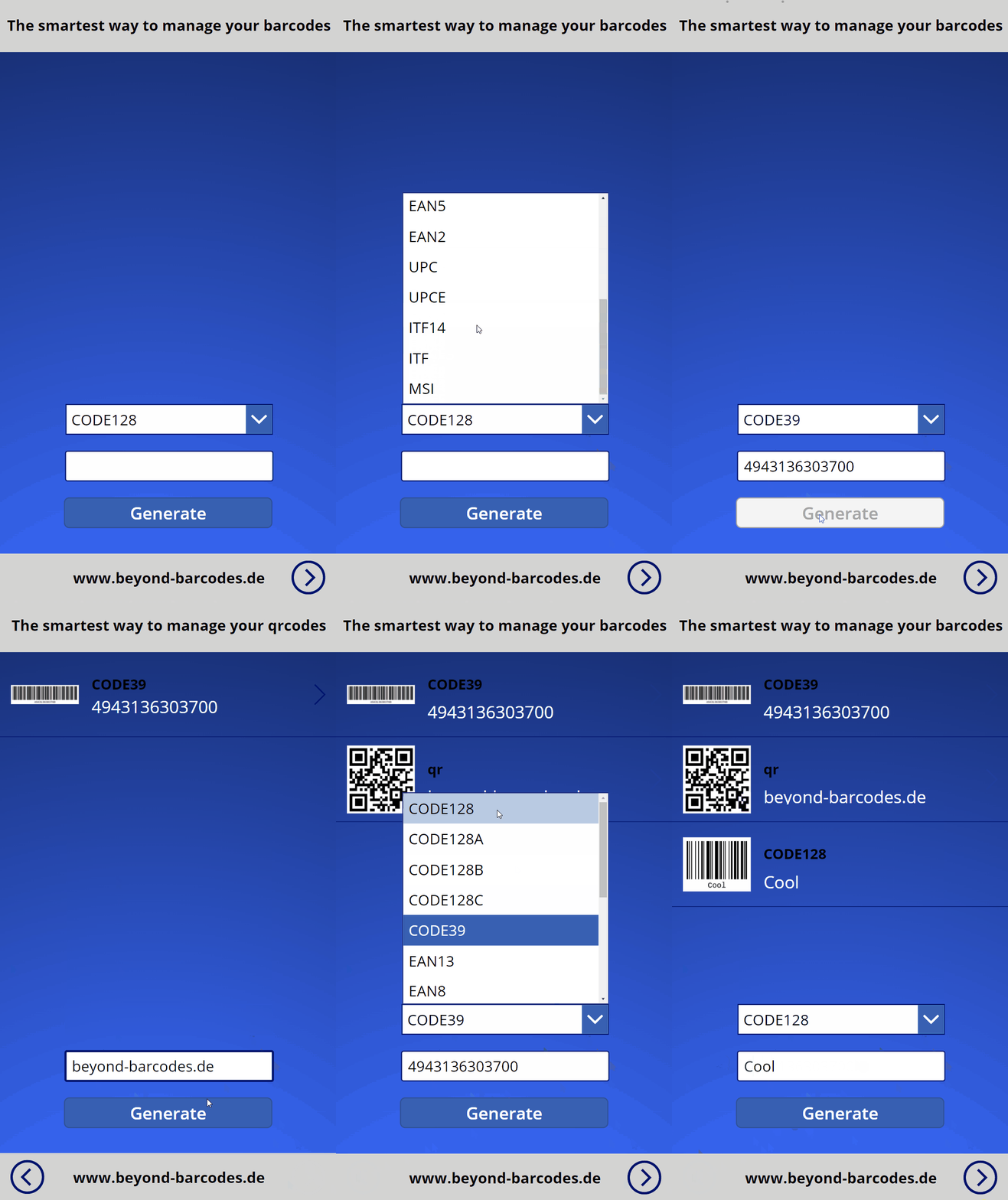
Animated demo of the finished Beyond-Barcodes app generating a CODE39 barcode, a QR code, and a custom CODE128 barcode from user input

Here we go!

Open https://make.powerapps.com/

Create a new "Blank app"
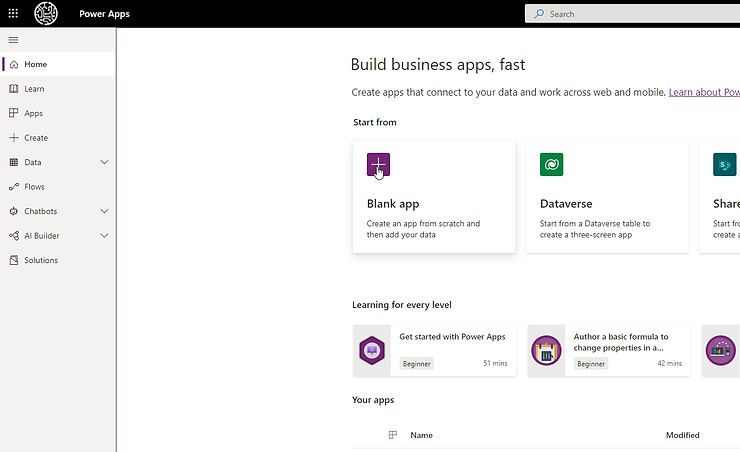
Power Apps home screen with the Blank app tile selected under Start from

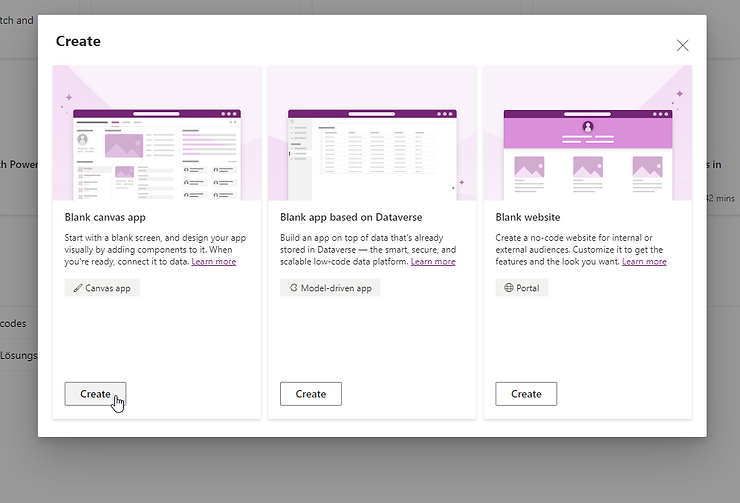
Create a Blank canvas app

Create dialog with Blank canvas app chosen over the Dataverse and Portal options

Name it "Beyond-Barcodes" and select the format!
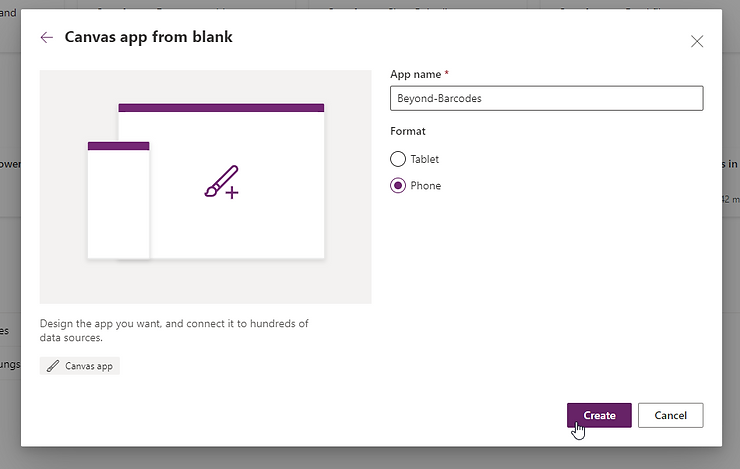
Canvas app from blank dialog with the app named Beyond-Barcodes and Phone format selected

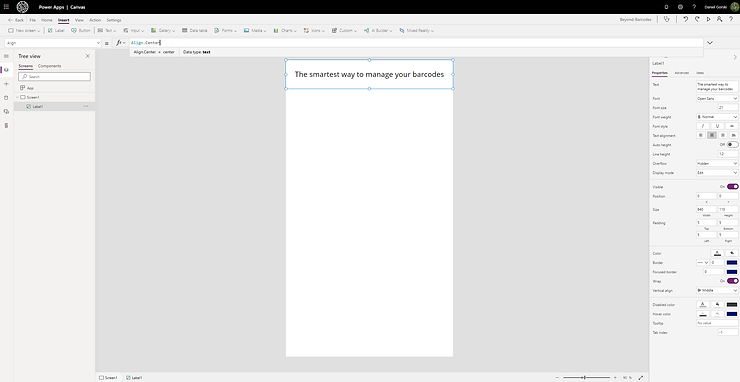
An editor opens and lets create a label.
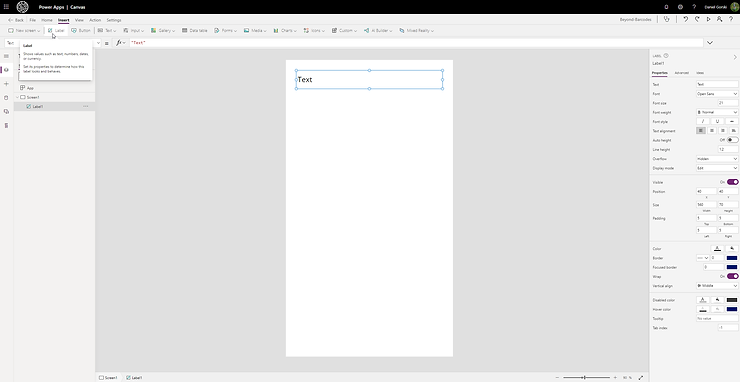
Power Apps canvas editor with a new Label control showing placeholder text added to the blank screen

Specify some text here

Label text updated to read

Copy it and do it now for the bottom part
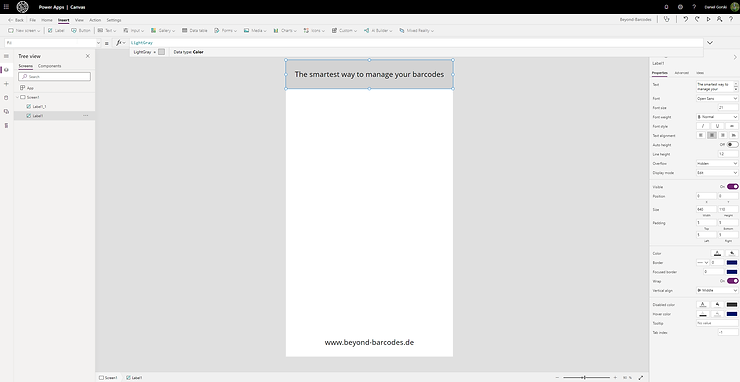
A second label reading

Right hand you can also select a background image
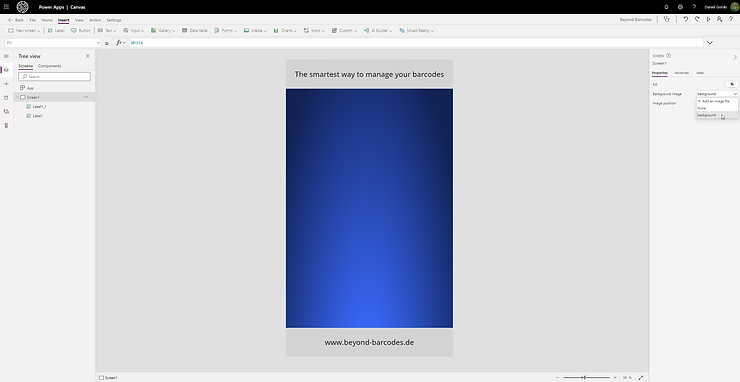
Screen properties panel with the Background image dropdown open, and a blue gradient fill already applied to the screen

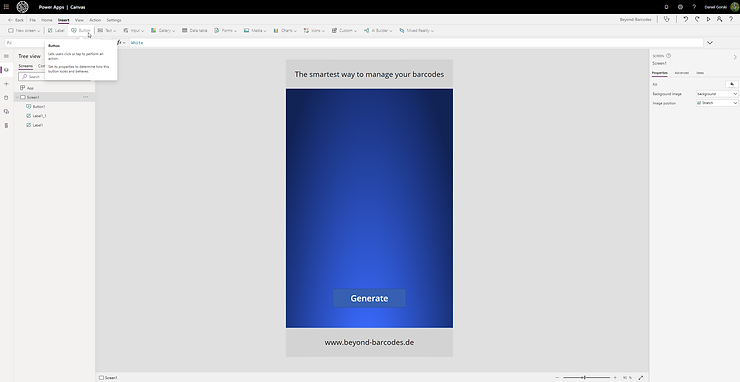
Lets create a button

A Generate button added mid-screen, with the Insert menu's button tooltip shown

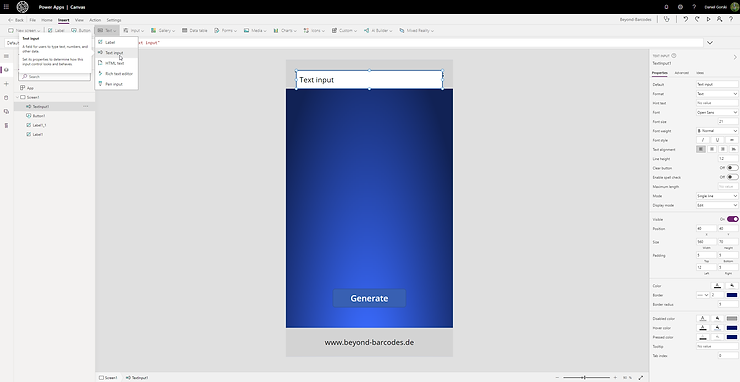
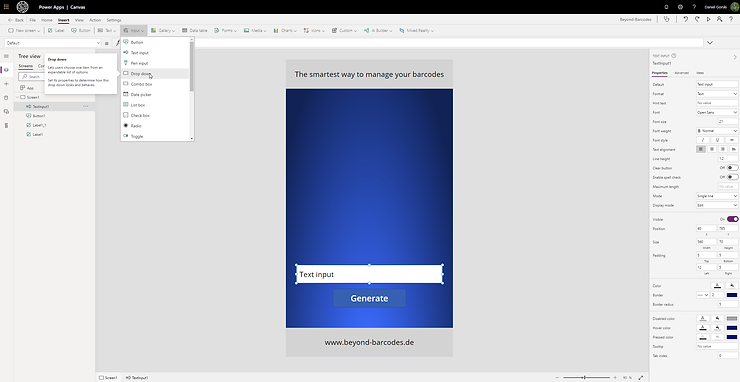
And a text input field

A Text input control inserted above the Generate button via the Insert menu

Move it next to the button

Text input moved next to the Generate button, with the Insert menu open to add a Drop down control next

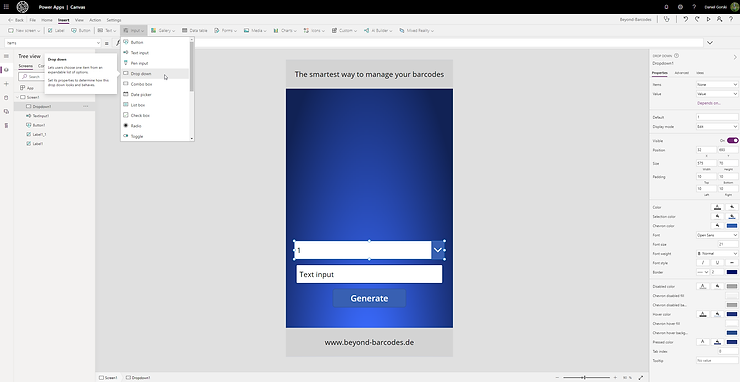
Create a drop down

A new Dropdown control placed above the text input and Generate button

Due to ower API we can select only specific barcode types

["CODE128","CODE128A","CODE128B","CODE128C","CODE39","EAN13","EAN8","EAN5","EAN2","UPC","UPCE","ITF14","ITF","MSI"]
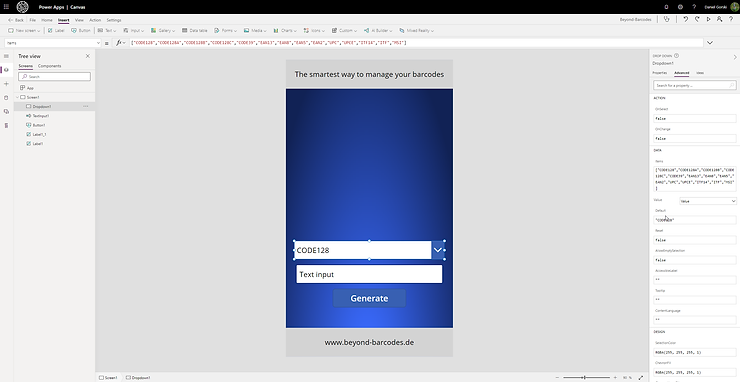
Dropdown Items property bound to the array of supported barcode format strings such as CODE128 and EAN13

After that do some adjustments and add a gallery
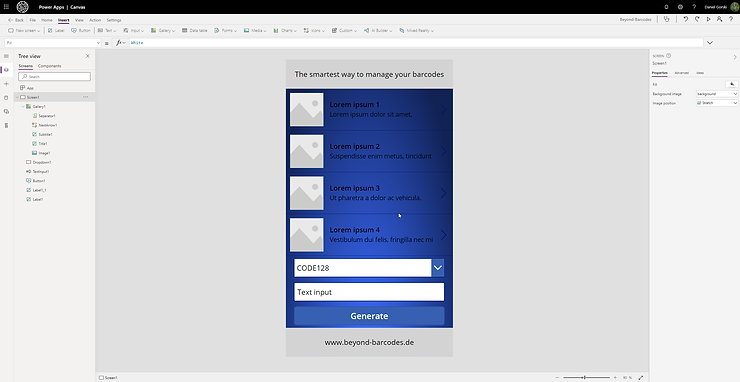
A Gallery control with placeholder Lorem Ipsum items added above the dropdown, input, and Generate button

After that your "base" app is nearly done. Lets create a Custom Connector!
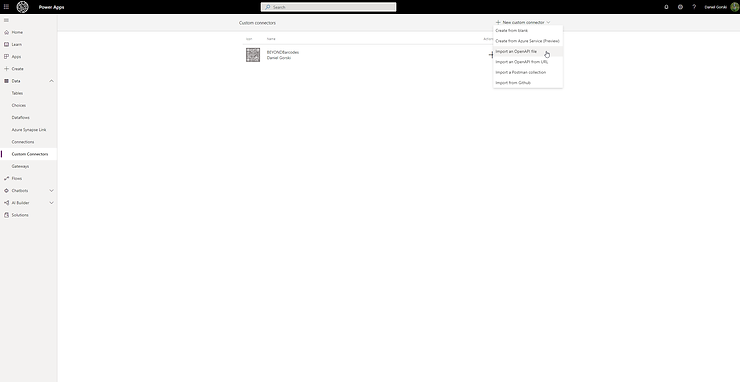
Custom connectors page with the New custom connector menu open to Import an OpenAPI file

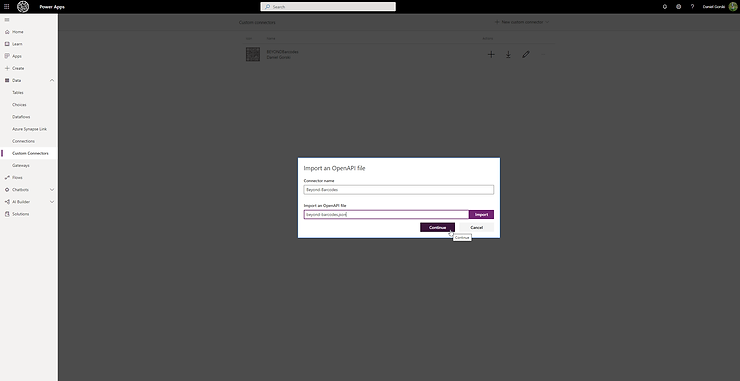
It's very easy to create a custom connector with a specific openAPI file
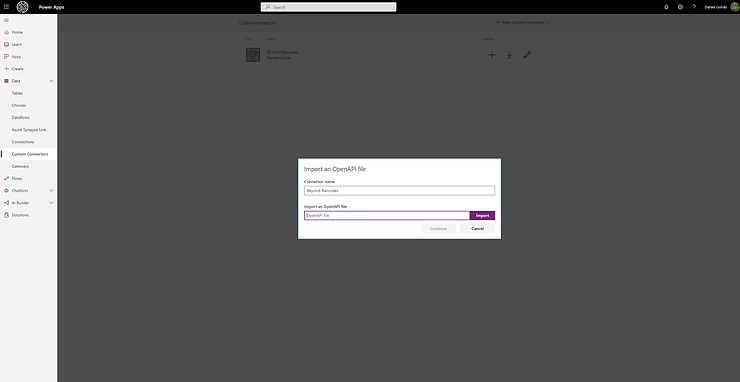
Import an OpenAPI file dialog with the connector named Beyond Barcodes and the file picker ready for the swagger file

Visit https://www.beyond-barcodes.de/how-does-it-work

to download our swagger.json
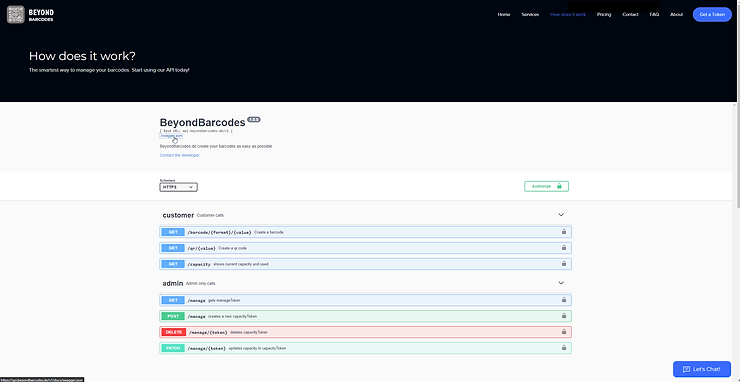
The Beyond Barcodes

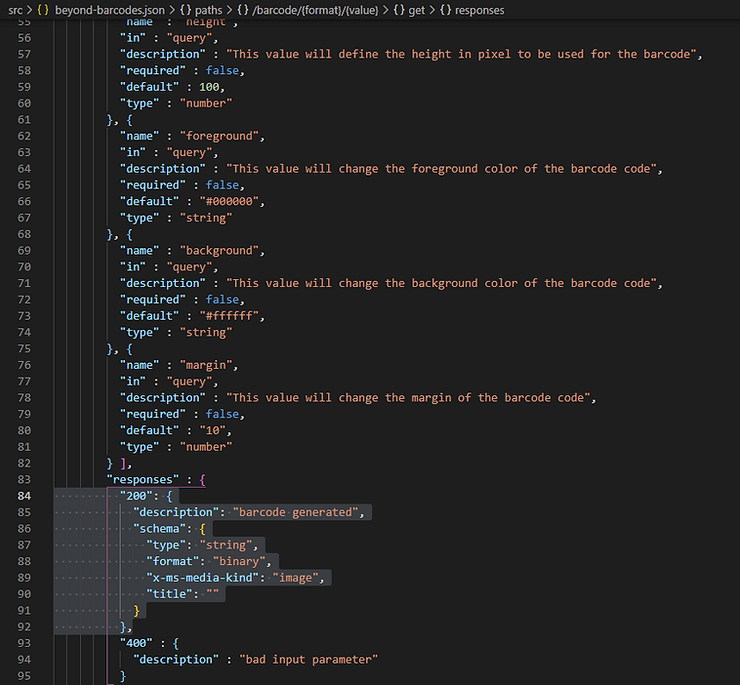
Adjust that json file with a binary schema at the responses part for the path "/qr/{value}"
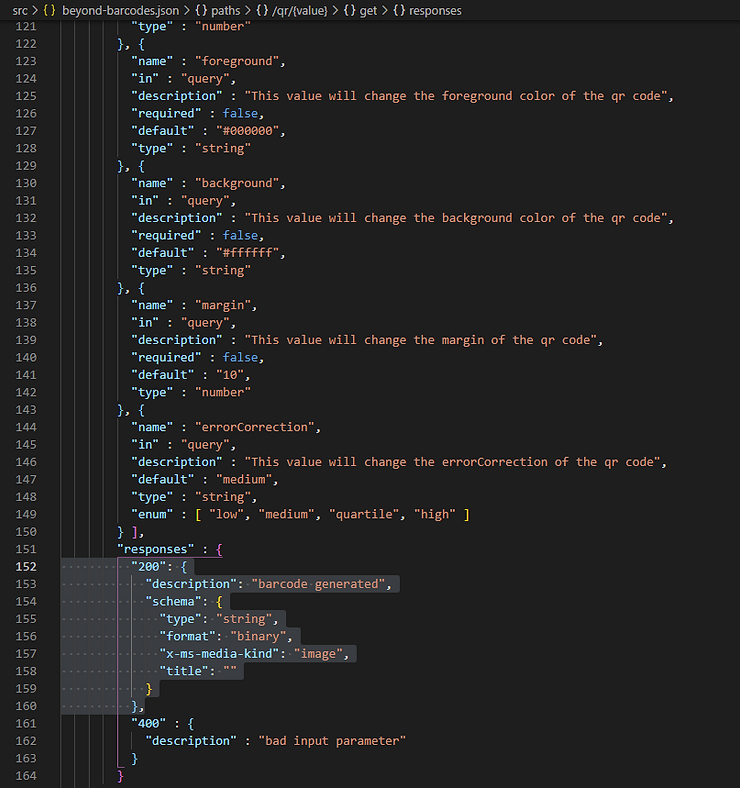
swagger.json opened in an editor with the /qr/{value} response schema changed to a binary image type

"/barcode/{format}/{value}"

swagger.json with the /barcode/{format}/{value} response schema likewise set to a binary image type

Save it and select it

Import an OpenAPI file dialog with the edited beyond-barcodes.json file selected for import

A new page appears and you specifiy some information
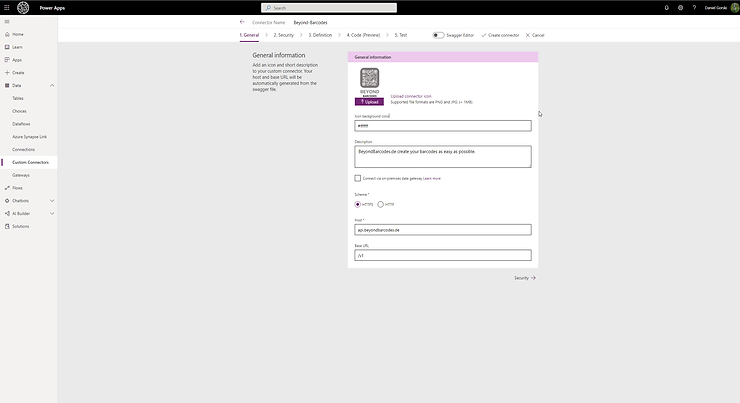
Custom connector General information tab with the host, base URL, and description filled in

I've renamed the parameter label to "token"
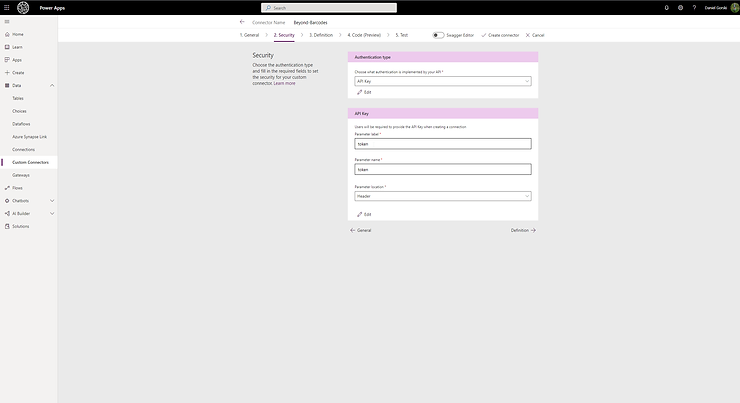
Security tab with API Key authentication selected and the parameter label renamed to token

I've added the verb to Operatio ID because we throw a "GET" here
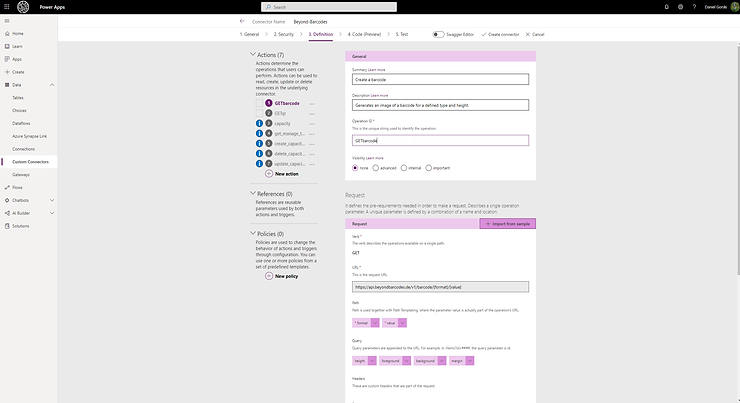
Definition tab for the GETqr action with the Operation ID set to GETqr and the request URL pointing to /qr/{value}

Also for creating qr codes. Delete all other actions or use them ;-)
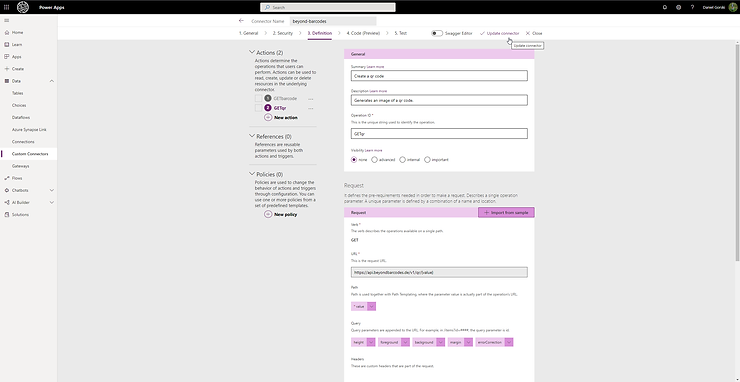
Definition tab listing all seven imported actions, including capacity and token-management calls to delete or keep alongside GETbarcode and GETqr

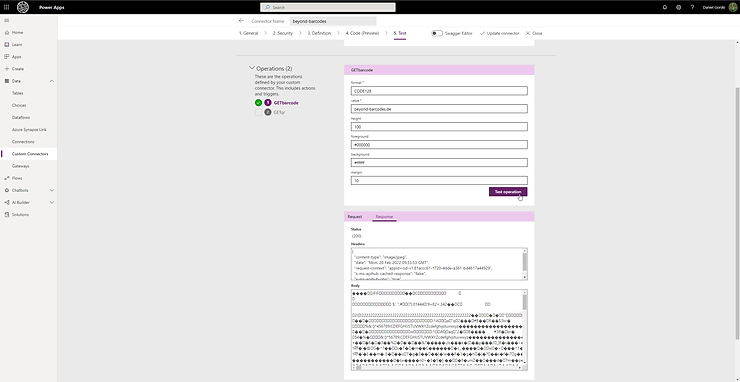
Create your connector and after that you can test it.
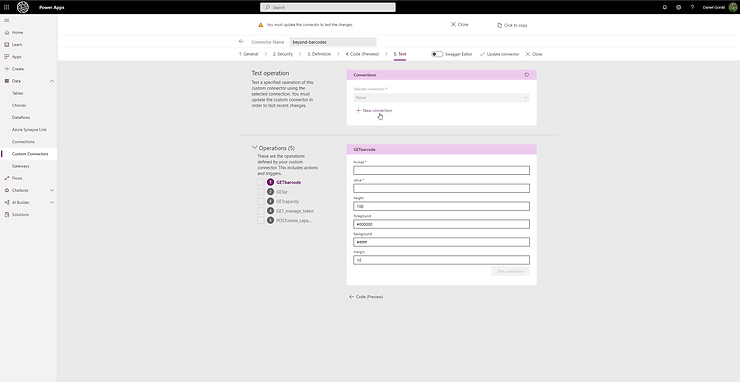
Test tab of the created connector listing its operations, with GETbarcode selected and its format, value, height, and color parameters

Create a new connection and enter our our free token for 1.000 calls:

2CuyVoMChUGjbrwbP6ajSU618U9mNYmhmzhNm2oc
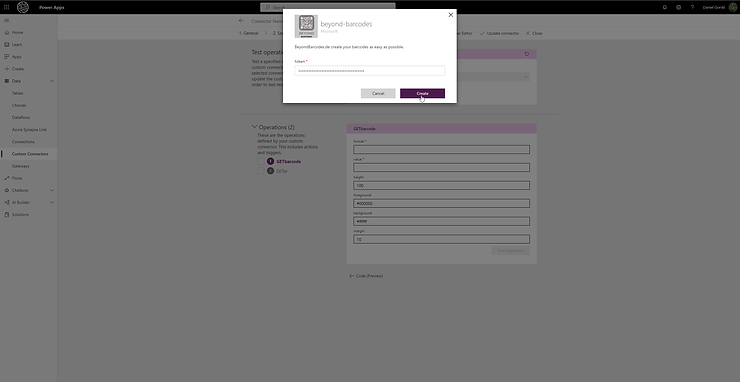
New connection dialog for the Beyond Barcodes connector prompting for the API token

And throw a test :-)

Test operation result for GETbarcode showing a 200 response with the generated barcode image in the body

Your custom connector is ready to be used!

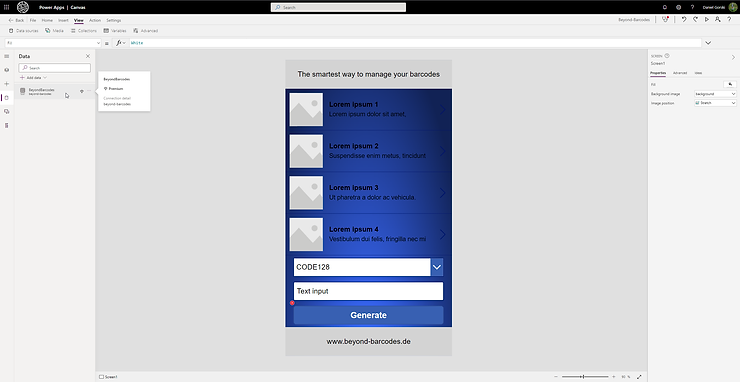
Jump back into your app and add now your custom connector into data source
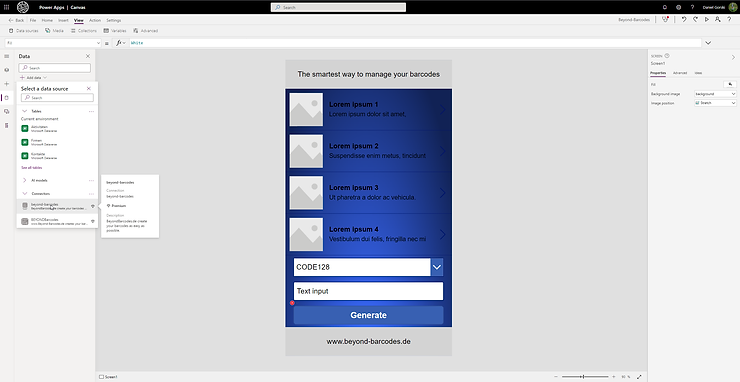
Power Apps Data pane with the Beyond Barcodes custom connector being added as a data source

Select it (left hand)

BeyondBarcodes connector selected in the app's data sources list

Select your previously created button
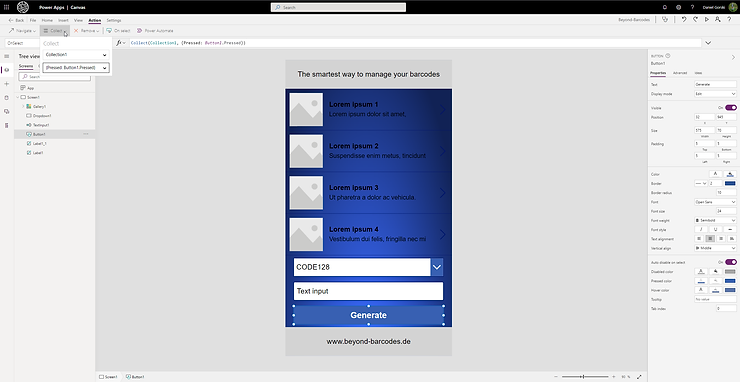
Generate button selected with the Action tab open, ready to set its OnSelect formula

and add this for "OnSelect" to insert your barcode into your collection.

Collect(barcodeslist, {
    barcode: BeyondBarcodes.GETbarcode(Dropdown1.SelectedText.Value, TextInput1.Text)
})

or test it with this:
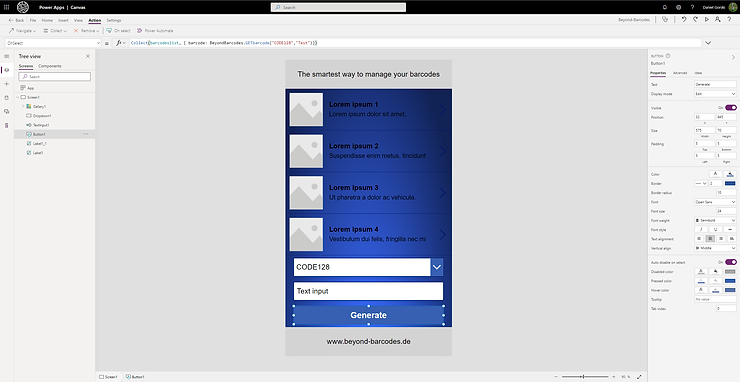
OnSelect formula for the Generate button using a hardcoded CODE128 test value to call the BeyondBarcodes connector

this is how it should look like by selecting the "generate" button
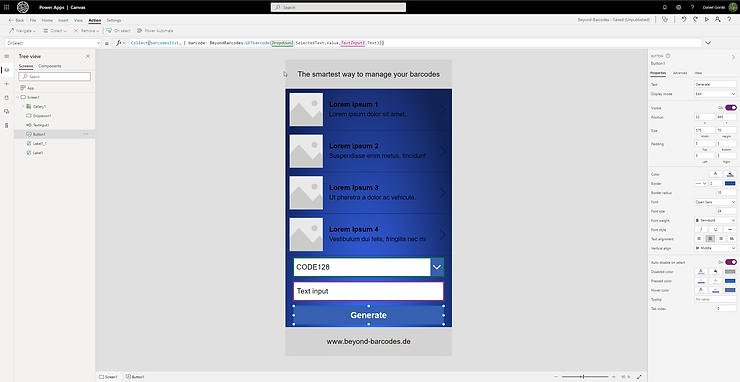
OnSelect formula updated to read the Dropdown and text input values instead of the hardcoded test data

Select the gallery and a pop up appears to select the data source. You should choose the new collection.
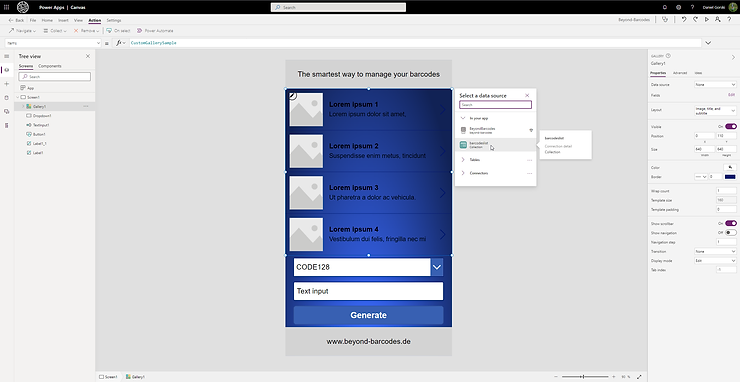
Select a data source panel for the gallery with the BarcodesList collection chosen

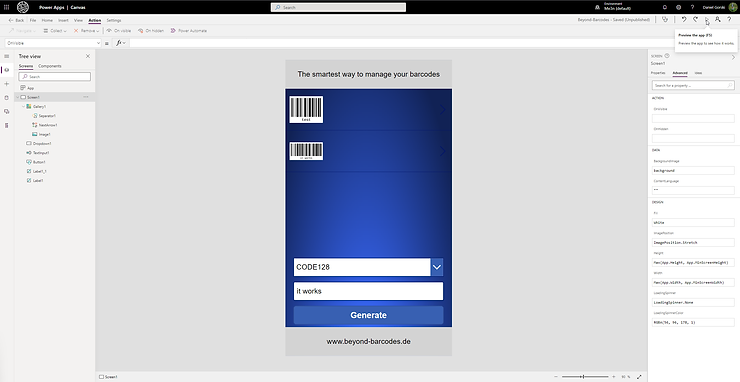
Preview the app by hitting F5 or use the button at the upper right corner
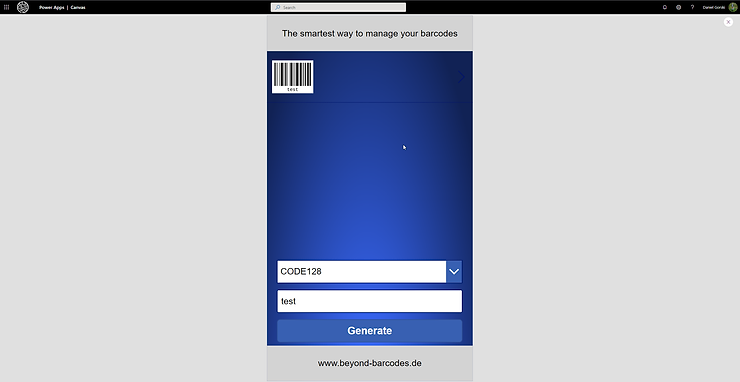
App running in preview mode showing a generated CODE128 barcode labeled

Generate your barcodes!

Finished app in the editor with two barcodes,

Related posts

beyondit
tech
Power Apps
Business Central
Barcode API
Low Code
EN
E-Invoicing formats UBL, CII, ZUGFeRD and Factur-X compared

E-Invoicing

July 21, 2026 - Daniel Gorski

UBL, CII, ZUGFeRD, Factur-X: E-Invoicing Formats Finally Explained

UBL, CII, ZUGFeRD or Factur-X – these e-invoicing formats get confused all the time. We break down the difference between pure XML formats and hybrid…

Read More
Read More: UBL, CII, ZUGFeRD, Factur-X: E-Invoicing Formats Finally Explained
DE
GoBD-konforme Archivierung mit Business Central und SharePoint ohne DMS

Architektur

April 24, 2026 - Sven Wischhusen

Revisionssicher archivieren ohne DMS? Wie weit Business Central, SharePoint und Azure Blob Storage wirklich tragen

Warum „GoBD" oft vorschnell zum K.O.-Kriterium wird – und wie weit Business Central, SharePoint und Azure Blob Storage wirklich tragen.

Read More
Read More: Revisionssicher archivieren ohne DMS? Wie weit Business Central, SharePoint und Azure Blob Storage wirklich tragen